
Teacher · WebVerified 30 Aug 2026
How to Show Amounts with Due Dates
Payment amounts are optional notes displayed alongside due dates to help you track an agreed amount. They are not invoices, balances, or a record of money collected.
Before you begin
Set up a student's payment due dates first if you want amounts to appear beside them.
Steps
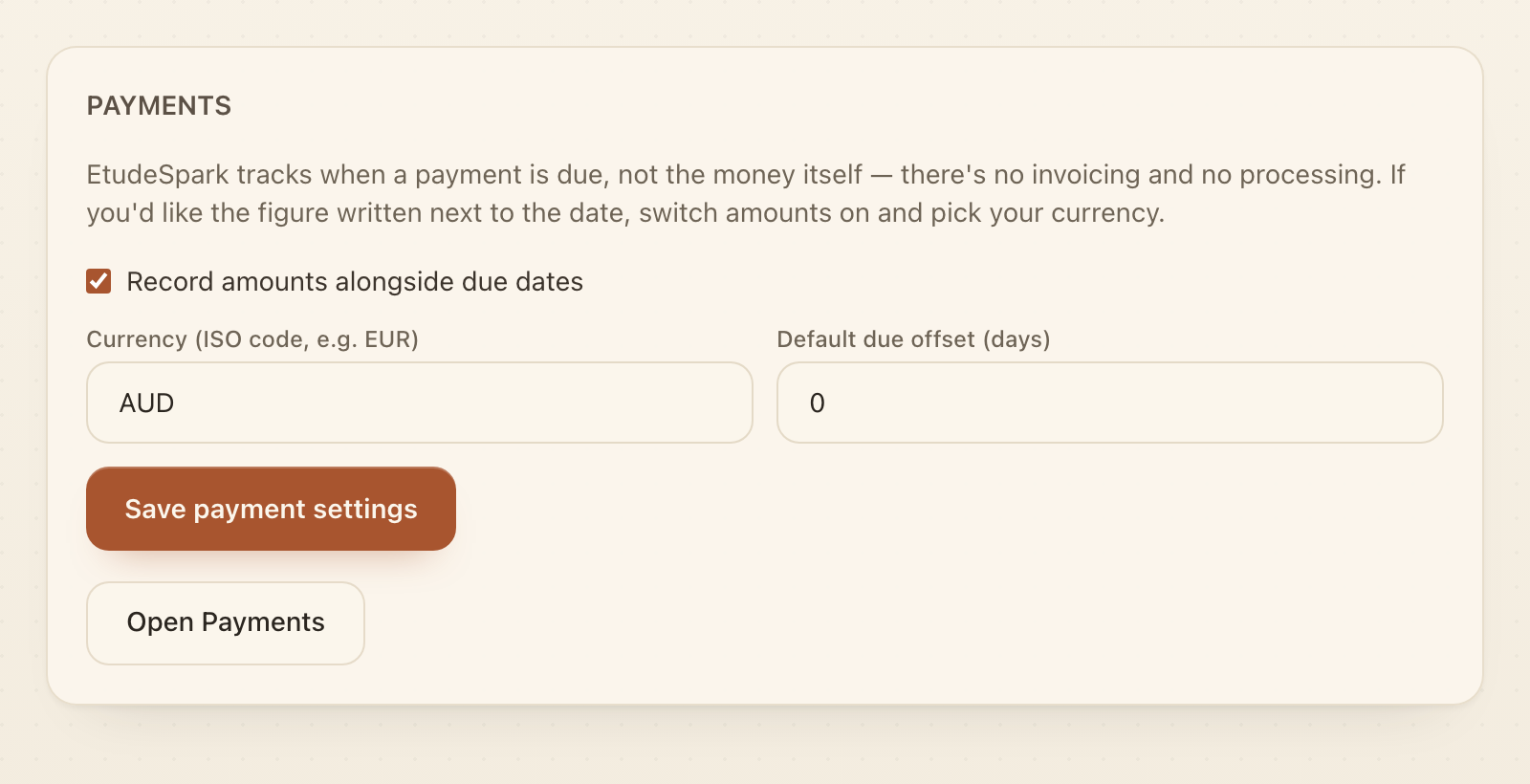
- Open Payments. Select Payment settings.
- Turn on amounts. Select Record amounts alongside due dates.
- Set the display. Enter a three-letter Currency (ISO code, e.g. EUR) and review Default due offset (days), which sets when payment is due relative to the period start.
- Save the settings. Select Save payment settings.
💡 Tip: Use the same currency across the studio so every optional amount note is immediately clear.